tax client follow-up automation: 2027 Planning Guide
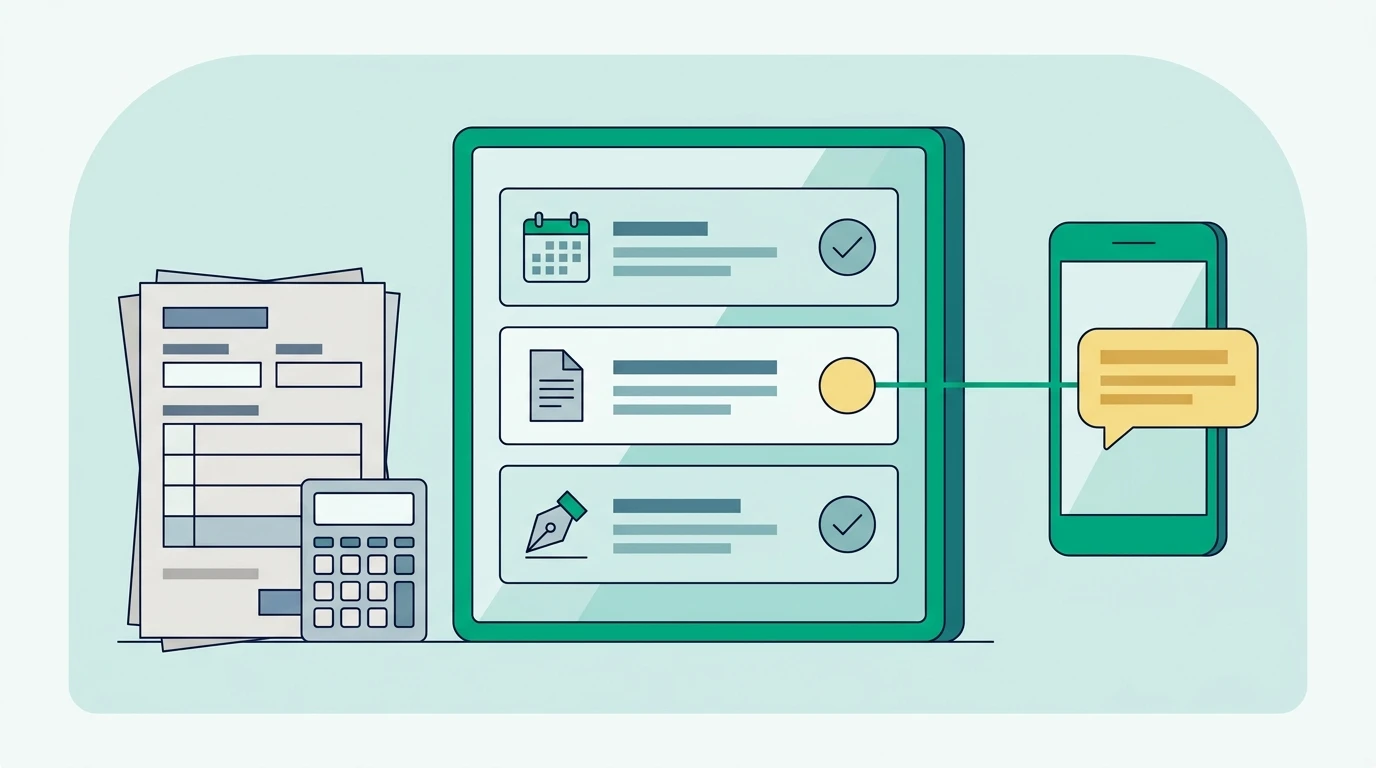
Tax client follow-up automation sends reminders when a client has not booked, supplied documents, answered a message, or completed a required step. If your January workload lives across sticky notes and scattered apps, start before the 2027 tax season. Build around client status, consent, and stop rules, using the walkthrough below.
Key Takeaways
- Give every active client a current status, a responsible staff member, and a next action before enabling reminders.
- Stop each sequence when its requested action is complete. Pause it when a client replies so staff can review the response.
- Use SMS or WhatsApp for short prompts and email for fuller instructions, keeping sensitive tax information inside your secure portal.
- Test completed actions, wrong numbers, and opt-outs before enrolling returning clients.
1. Put each client’s next action in one shared record
A follow-up system needs a reliable answer to one question: What does this client need to do next? Start with your existing records rather than moving every historical contact into a campaign.
At Conecta, we've seen how much time tax offices spend chasing clients for documents, appointments, and updates. I believe tax professionals shouldn't have to remember every follow-up themselves. A good system should handle routine reminders automatically while keeping the tax professional in control of client relationships.
Run your tax office from one bilingual system.
See how Conecta handles clients, messages, documents, reminders, and workflows.
Create an active-season group for clients you expect to serve in 2027. Separate confirmed returning clients from people whose engagement status is unknown. Someone who filed with you previously may have moved, changed preparers, or decided not to file with your office.
Each record should contain the fields below. Most can be dropdowns, which makes them easier for seasonal staff to maintain consistently.
| Record field | What to record | Why it matters |
|---|---|---|
| Season and service | Upcoming filing season and service requested | Prevents an old engagement from triggering current reminders |
| Current status | Needs booking, awaiting documents, awaiting client response, ready for review, or completed | Determines which follow-up applies |
| Next client action | The specific task blocking progress | Keeps messages useful rather than generic |
| Follow-up owner | Staff member responsible for replies and exceptions | Prevents unanswered responses in a shared inbox |
| Preferred language | English or Spanish, confirmed with the client | Routes the appropriate approved template |
| Channel permission | Allowed channels, consent record, and opt-out status | Prevents reminders through an inappropriate channel |
| Last contact and next review | Most recent interaction and next staff review | Makes stalled cases visible |
Use a separate engagement record when someone has multiple services or prior-year returns. A client may have completed an individual return while still owing documents for a business engagement. One broad “completed” label can hide unfinished work.
Also decide where replies will land. A shared queue, such as Conecta’s inbox for SMS, email, and portal messages, gives staff a common place to handle responses. Assign someone to review it each workday; visibility alone does not create ownership.
2. Map the triggers, timing, and exit rules
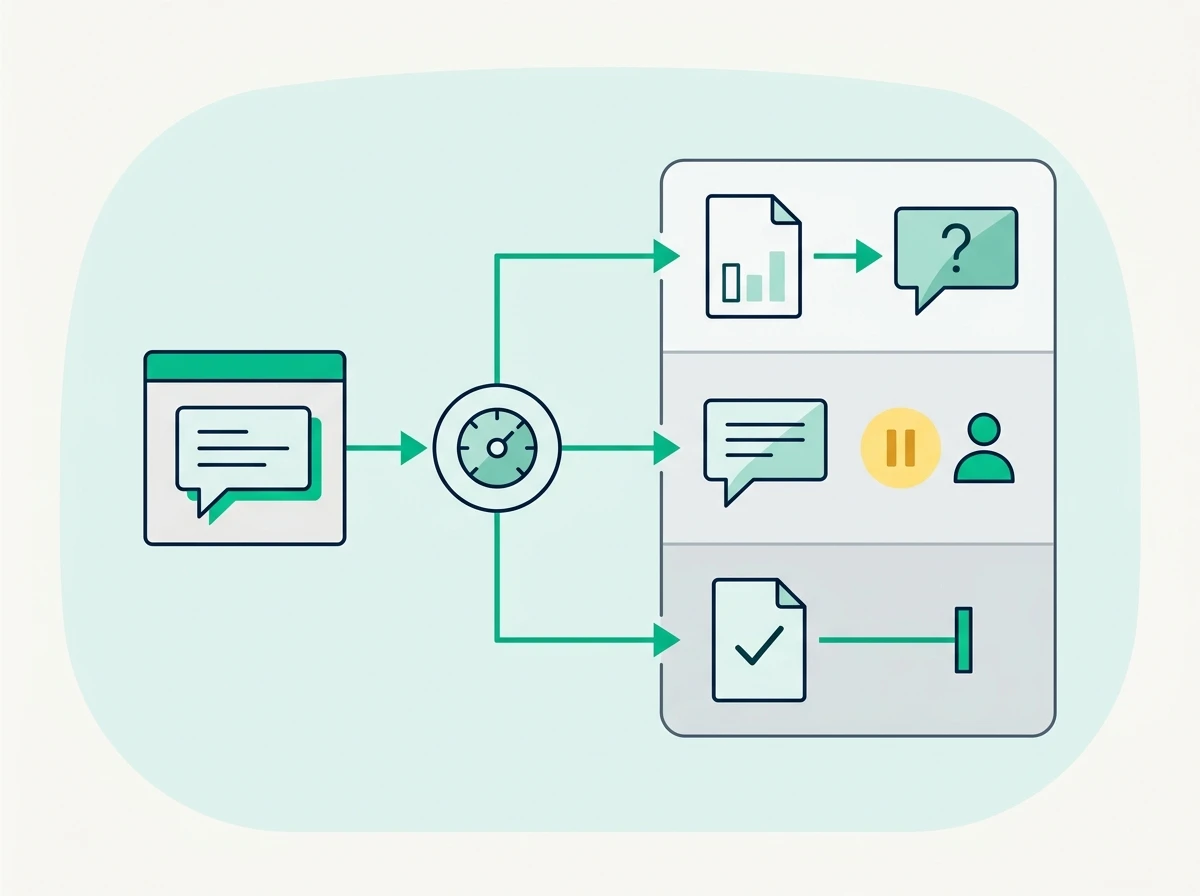
A trigger is the event that starts a reminder sequence. An exit rule ends it when the request is satisfied, while a pause rule holds it for staff review.
Define the exit before writing the message. Otherwise, a client can upload a document at breakfast and receive another request that afternoon because the automation only checks elapsed time.
Use this starter map as a planning template. The timing is a proposed office policy, not a benchmark or legal requirement; adjust it to your staffing, client preferences, and actual deadlines.
| Workflow | Start condition | Suggested reminder pattern | Exit or pause rule |
|---|---|---|---|
| Returning-client reactivation | Eligible past client has no current appointment or active engagement | Initial invitation, follow-up after a week, then staff review | Exit when booked or declined; pause on any reply |
| Booking incomplete | Client requested service but has not scheduled | Booking link, then a reminder after several business days | Exit when an appointment exists |
| Appointment confirmation | Appointment is created | Immediate confirmation; reminder the previous business day | Replace old reminders if rescheduled; stop if canceled |
| Missing documents | Staff identifies an outstanding item | Request immediately; remind after several business days if still missing | Exit when staff verifies the requested item |
| Unanswered question | Staff sends a question requiring a response | Reminder after the response date you gave the client | Pause on reply; staff determines whether it resolves the question |
| Signature or payment pending | Authorized request is sent and remains incomplete | Reminder based on your stated completion date | Exit on confirmed completion; route disputes to staff |
Keep preparation milestones separate from communication status. “Message delivered” does not mean “client understood.” Likewise, a document upload does not establish that the file is readable, complete, or relevant to the request.
Set a maximum reminder count for each sequence. After that limit, create an internal task instead of continuing indefinitely. We recommend a modest initial request and follow-up, followed by human review when the client remains silent.
Deadline-sensitive work needs its own escalation path. A routine reminder sequence cannot decide whether an extension, missing authorization, or unresolved tax question requires professional attention.
3. Write reminders clients can act on immediately
Every reminder should identify your office, explain the next action, and provide a direct way to complete it. Avoid vague requests such as “Please finish your taxes.” Clients cannot tell whether you need an appointment, a document, or a signature.
The examples below are copy-ready starting points. Replace bracketed fields with verified information, and use your approved secure links. Each message should ask for one action.
Returning-client reactivation
Email subject: Schedule your upcoming tax appointment
“Hi [First name], this is [Office name]. We’re preparing our appointment calendar for the upcoming tax season. If you plan to work with us again, choose an available appointment at [booking link]. If your plans have changed, reply and we’ll update your record.”
Send this only to the appropriate returning-client group. Exclude clients who declined service, have an unresolved complaint, or already booked through another staff member.
SMS follow-up
“Hi [First name], [Office name] following up about scheduling your tax appointment. Available times: [booking link]. Already booked? Reply so we can check your record. Reply STOP to stop texts.”
Use your messaging provider’s required opt-out wording and suppression settings. Do not assume adding a sentence to a template replaces proper consent management.
Appointment confirmation and reminder
SMS confirmation
“[Office name]: Your tax appointment is confirmed for [date] at [time] [time zone], [location or meeting format]. Manage your appointment: [link]. Please upload documents through your secure portal.”
For a virtual appointment, explain how the client will join. For an in-office visit, include the correct location rather than assuming clients remember which branch they selected.
Email reminder
“Your appointment with [Office name] is scheduled for [date and time]. Please review your personalized tax documents checklist in the portal before your visit. If you are still waiting for a form, reply so we can advise whether to keep or reschedule the appointment.”
Avoid automatically canceling every appointment with incomplete documents. A preparer may still want the meeting, particularly when it involves a complicated filing situation.
Missing-document request
SMS
“Hi [First name], [Office name] has an outstanding document request in your secure portal. Please review and upload the requested file at [portal link]. If you’re waiting for it, reply with an update.”
“We reviewed your uploaded documents and still need the item listed in your secure portal request. Please upload it through [portal link], rather than replying with an attachment. If you believe you already submitted it, reply with the upload date so we can check.”
The request inside the portal should name the exact document and explain what is missing. Your missing-document follow-up process should also distinguish “received” from “reviewed,” so an unrelated upload does not close the request.
Unanswered questions and unfinished preparation
WhatsApp reminder
“Hi [First name], this is [Staff name] from [Office name]. We need your response to a question in your secure portal before we can continue preparing your return. Please review [portal link], or reply if you need help accessing it.”
For signature requests, replace the question with the specific action: “Your tax authorization is ready for review and signature in your secure portal.” Do not describe a return as filed while authorization or transmission remains outstanding.
Keep payment reminders separate from signature requests. Mixing them makes completion harder to track and can confuse clients about what is holding up their return.
4. Build one complete sequence before adding more
Start with the most repetitive, clearly defined follow-up your office already performs. For many small offices, that is confirming an appointment or reminding a returning client to book.
Conecta brings client records, communications, and follow-up into one platform; founder Alberto Contreras built it after working at Latino Tax Pro and ATAX. Its automation tools for message sequences, waits, and tasks are one example of how to organize this process. Confirm which events your setup can detect automatically before relying on them.
Follow this implementation order:
- Create the enrollment condition. For a booking sequence, select eligible returning clients with permission for the chosen channel, no appointment, and no active booking follow-up.
- Check exclusions. Remove declined engagements, unresolved complaints, invalid contact details, and clients already being handled personally by staff.
- Send the initial request. Use the approved template, the client’s preferred language, and the correct booking link.
- Wait, then check the record again. Send another reminder only if the appointment is still missing and no reply or opt-out has arrived.
- Route replies to the owner. Pause the sequence while staff determines whether the client needs help, wants a different service, or has declined.
- Close or escalate. End the sequence when booked. If the reminder limit is reached, create a review task rather than another message.
Before each outbound reminder, check that the action is still outstanding. Some systems support conditional checks directly; others require a status change, integration, or staff-maintained field. A documented manual checkpoint is safer than assuming two disconnected tools synchronize.
Consider a hypothetical returning client who receives a booking invitation and schedules by phone. The receptionist must record that appointment in the system the automation checks. If it stays only on a paper calendar, the client will continue receiving booking reminders.
Apply the same logic to other workflows. A signature reminder should use confirmed signature status. A payment reminder should use confirmed payment status. If those events are unavailable, assign staff to update the record before the next scheduled send.
5. Protect client information and handle exceptions
Automated outreach should direct clients toward secure work, while keeping sensitive details out of ordinary notifications. Tax preparation automation still needs professional supervision, especially when messages involve filing decisions or disputed information.
The IRS’s guidance on safeguarding taxpayer data explains tax professionals’ responsibility to protect client information and maintain a written information security plan. Include your follow-up tools and staff access practices in that planning.
Avoid putting Social Security numbers, bank details, or tax documents into routine SMS, email, or WhatsApp reminders. Even a correct phone number may display notifications on a shared device. Use general wording outside the portal and specific requests inside it.
Separate service reminders from marketing
An appointment confirmation and a returning-client promotion may have different compliance requirements. Record permission by channel, retain the source of consent, and honor opt-outs across connected systems.
For email campaigns, the FTC’s CAN-SPAM compliance guide explains the distinction between commercial and transactional messages. Do not assume every message qualifies as transactional because the recipient used your office previously.
WhatsApp also has platform-specific requirements. Follow the WhatsApp Business Messaging Policy, including applicable permission and template requirements, rather than copying an email campaign into a personal messaging account.
Keep bilingual workflows equivalent
Store the client’s language preference and maintain approved English and Spanish versions of each template. Give both versions the same purpose, timing, and completion rules. Have a fluent reviewer check meaning before launch.
Test the destination as well as the message. A client who receives a reminder in their preferred language may still get stuck if the booking instructions or portal request switch languages unexpectedly.
Route exceptions to people
A response such as “I already uploaded that” should pause reminders and create a review task. Staff can check whether the file belongs to the correct engagement, whether it is readable, and whether it satisfies the request.
A hard bounce or invalid phone number should stop that channel and create a contact-verification task. Never keep retrying an unreachable address or switch channels without checking permission.
Keep preparer-controlled decisions out of routine sequences. Do not automatically promise a refund, declare a return ready to file, or imply an extension has been filed. Those statements require verified facts and appropriate review.
6. Test, launch, and measure the work that remains
A useful follow-up system reduces unresolved client actions without creating duplicate messages or a larger exception queue. Launch narrowly enough that staff can inspect what happened.
Test with internal records before enrolling clients. Walk through booking, replying, uploading a document, rescheduling, canceling, and opting out. Check that each event produces the intended result, especially when a message is already waiting to send.
| Test case | Expected behavior |
|---|---|
| Client books after receiving an invitation | Booking follow-up ends |
| Client replies with a question | Sequence pauses and owner receives a task or notification |
| Client uploads the wrong document | Request remains open pending staff review |
| Client reschedules | Reminders use the new appointment and suppress the old one |
| Client completes the signature | Signature reminder ends |
| Client opts out | Applicable messages stop and suppression is retained |
| Seasonal employee leaves | Their open follow-ups transfer to an active owner |
Start with a small, well-maintained returning-client group. Inspect message history and status changes before expanding enrollment. Fix one workflow completely before adding another source of reminders.
Review completion by workflow: invitations that become appointments, document requests that receive verified files, and signature requests that reach completion. Also review replies awaiting staff action, delivery failures, and reminders sent after completion. Those exceptions reveal where the process needs attention.
Include staff effort in your cost comparison. Check messaging charges, WhatsApp-related costs, seasonal user access, and any integration fees. Ask whether a temporary receptionist can update appointment status and handle replies without sharing another employee’s login.
For your 2027 preparation schedule, work backward from your first invitation campaign. Leave time to clean records, approve bilingual templates, test suppression rules, and train staff on exceptions. Avoid launching a new system at the same moment your appointment volume rises.
Frequently Asked Questions
Can I automate follow-ups without replacing my tax preparation software?
Yes. A CRM or workflow tool can manage communication while your tax preparation software handles returns. Verify which status changes transfer automatically and document any updates staff must make manually.
How often should a tax office send reminders?
Set timing around the requested action, client preference, and actual deadline. Begin with a limited sequence, pause when clients reply, and send unresolved cases to staff instead of repeatedly contacting them.
Should reminders go through SMS, email, or WhatsApp?
Use a channel the client has agreed to use and actually monitors. Short prompts suit SMS or WhatsApp, while email can carry fuller instructions; avoid sending the same reminder across every channel simultaneously.
What should happen when a client still does not respond?
Stop the routine sequence at your chosen limit and assign a staff review. The preparer should decide whether the case needs a personal call, deadline advice, or a documented change in engagement status.
Start with one outstanding client action and make its reminder, reply handling, and stop rule dependable. Then expand to the next bottleneck. To connect that plan with a working platform, explore Conecta’s tax office follow-up software and compare it against the workflow your office needs.
Need a bilingual CRM built for tax offices?
Conecta combines CRM, client portal, automations, and bilingual workflows in one system made specifically for tax professionals.